PerksPe Cards Management
Manage your company-issued cards for business spending and perks directly from the mobile app. This guide covers how to track spending, manage security settings, and handle card replacements.

1. Overview of PerksPe Cards
PerksPe cards are dedicated corporate cards issued for business-related expenses and employee perks. Unlike personal cards, these are subject to company policies and predefined spending categories.
Key Features:
- Policy Driven: Transactions are restricted by category and company-set limits.
- Real-time Monitoring: Every transaction follows predefined rules and is visible instantly.
- Secure Control: Easily lock, block, or replace cards through the app.
| Requirement | Description |
|---|---|
| Issuance | Card must be issued to you by your organization. |
| KYC | Full Know Your Customer (KYC) process must be completed. |
| Status | The card status must be set to "Active" in the system. |
2. Viewing Your Card Details
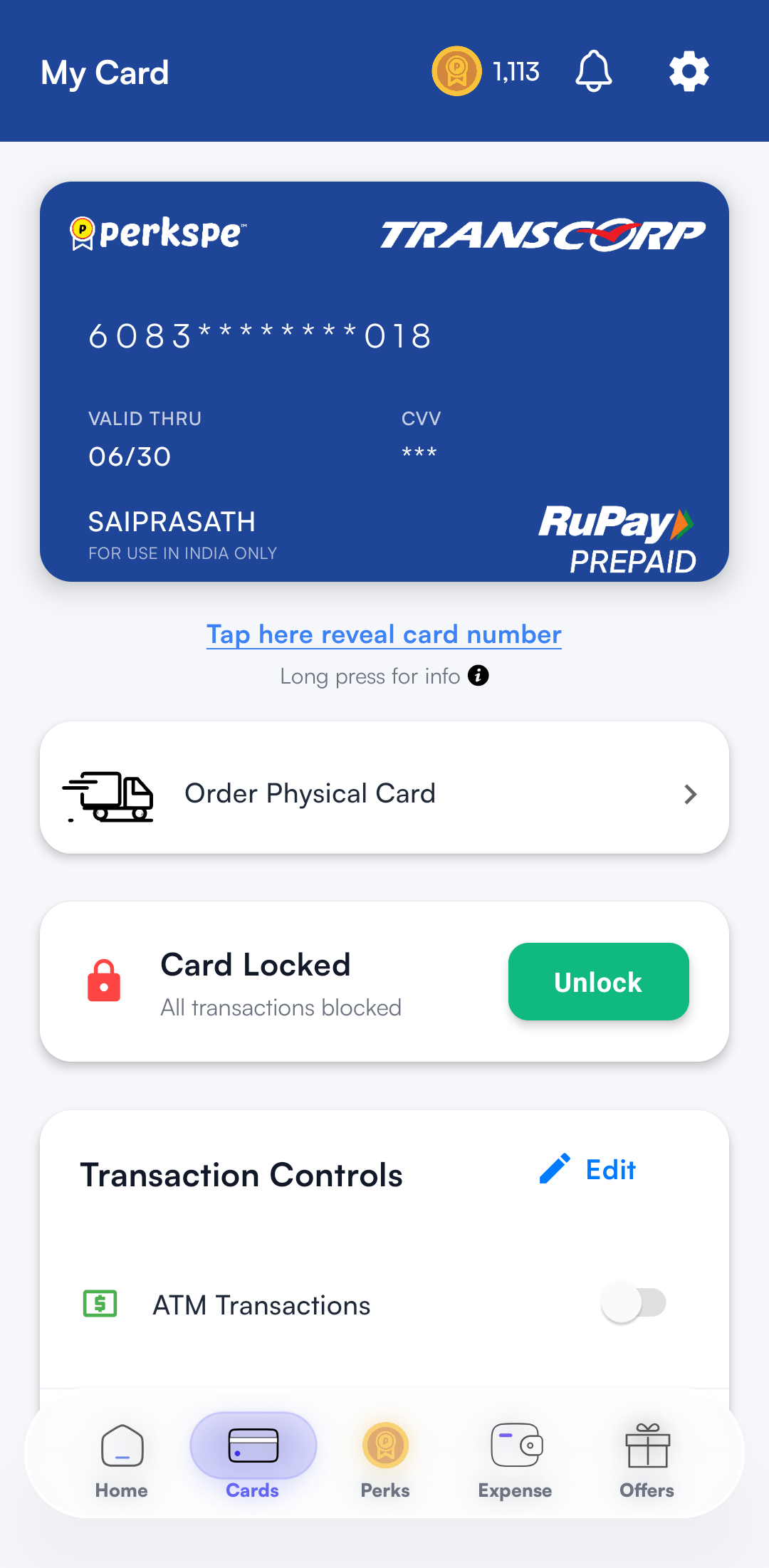
Access your digital card and management options through the dedicated Cards section.
- Navigation: Open the PerksPe app and tap the Cards icon in the bottom navigation.
- Details: View your card number, expiry date, and CVV (securely toggled).
3. Spending Limits & Controls
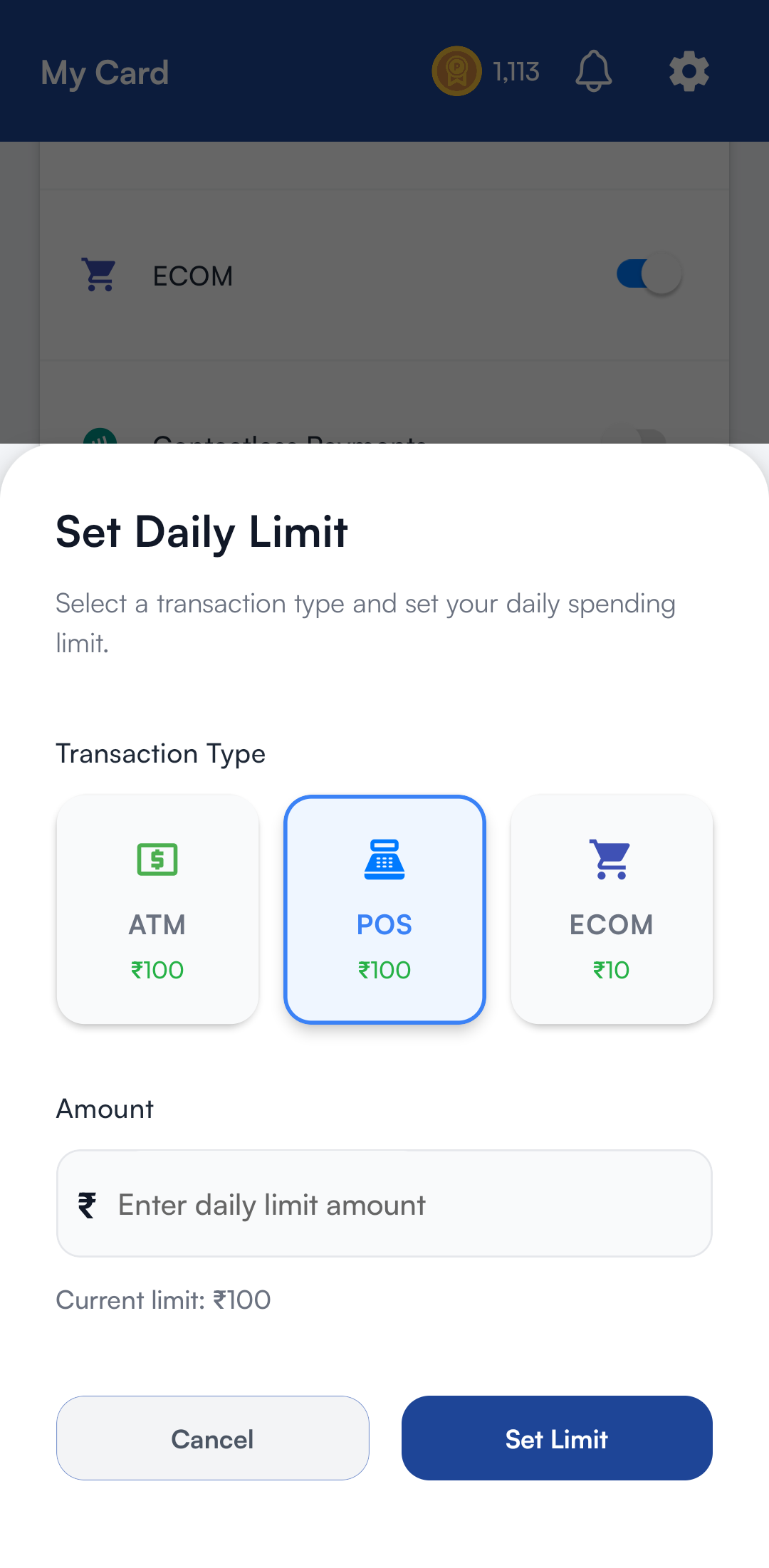
Your card comes with daily spending limits established by your organization. These cannot be modified by individual employees.
- Exceeding Limits: If a transaction surpasses any limit, it will be declined with a notification.
- Compliance: Ensure your purchases align with the assigned perk categories.
4. Managing Your Card Security
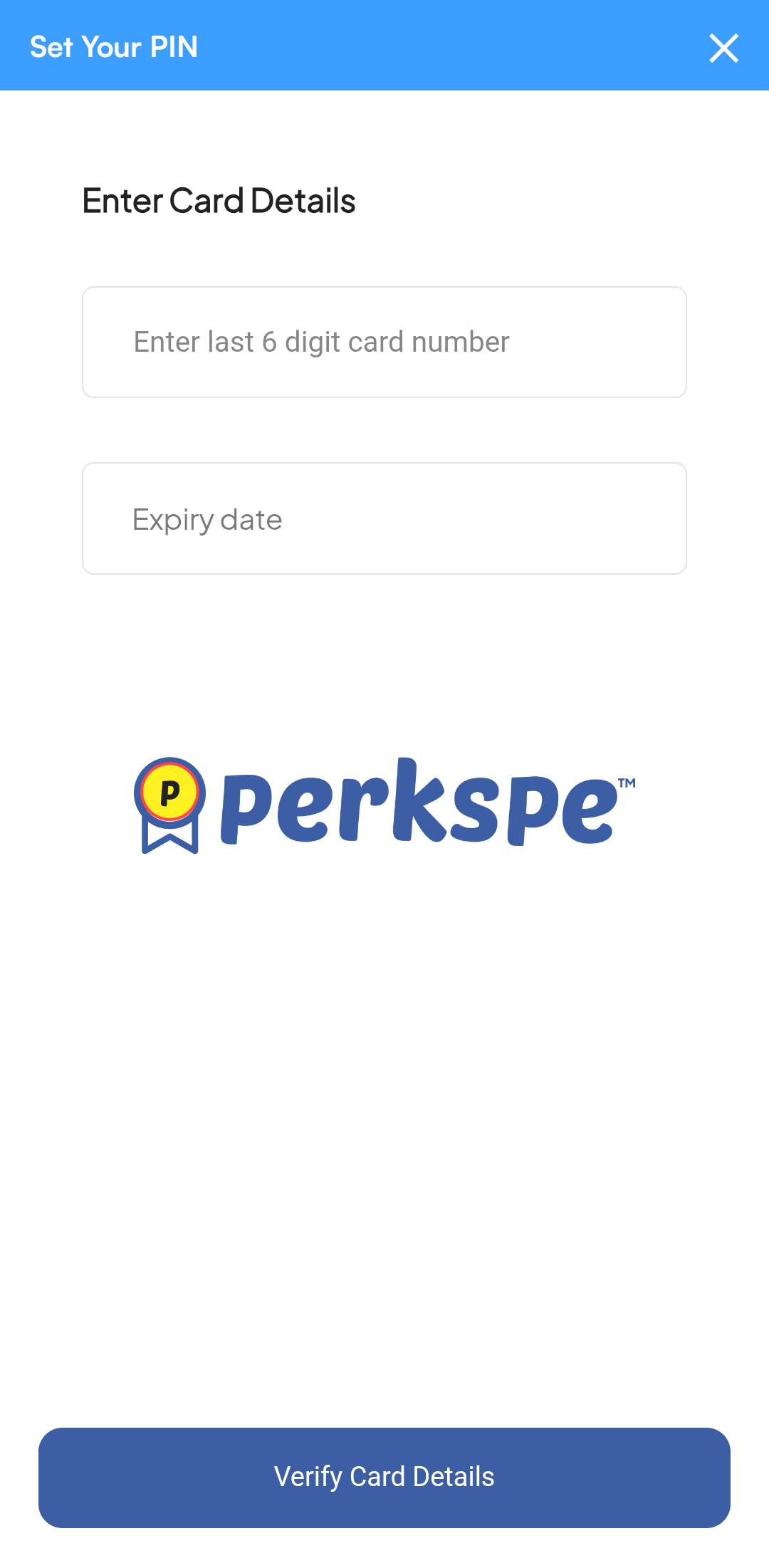
Keep your card secure by managing your PIN and using temporary or permanent disable options.
Changing Your PIN
- Navigate to the Cards page.
- Select your active card.
- Tap on Change PIN.
- Follow the prompts to set a new 4-digit PIN.
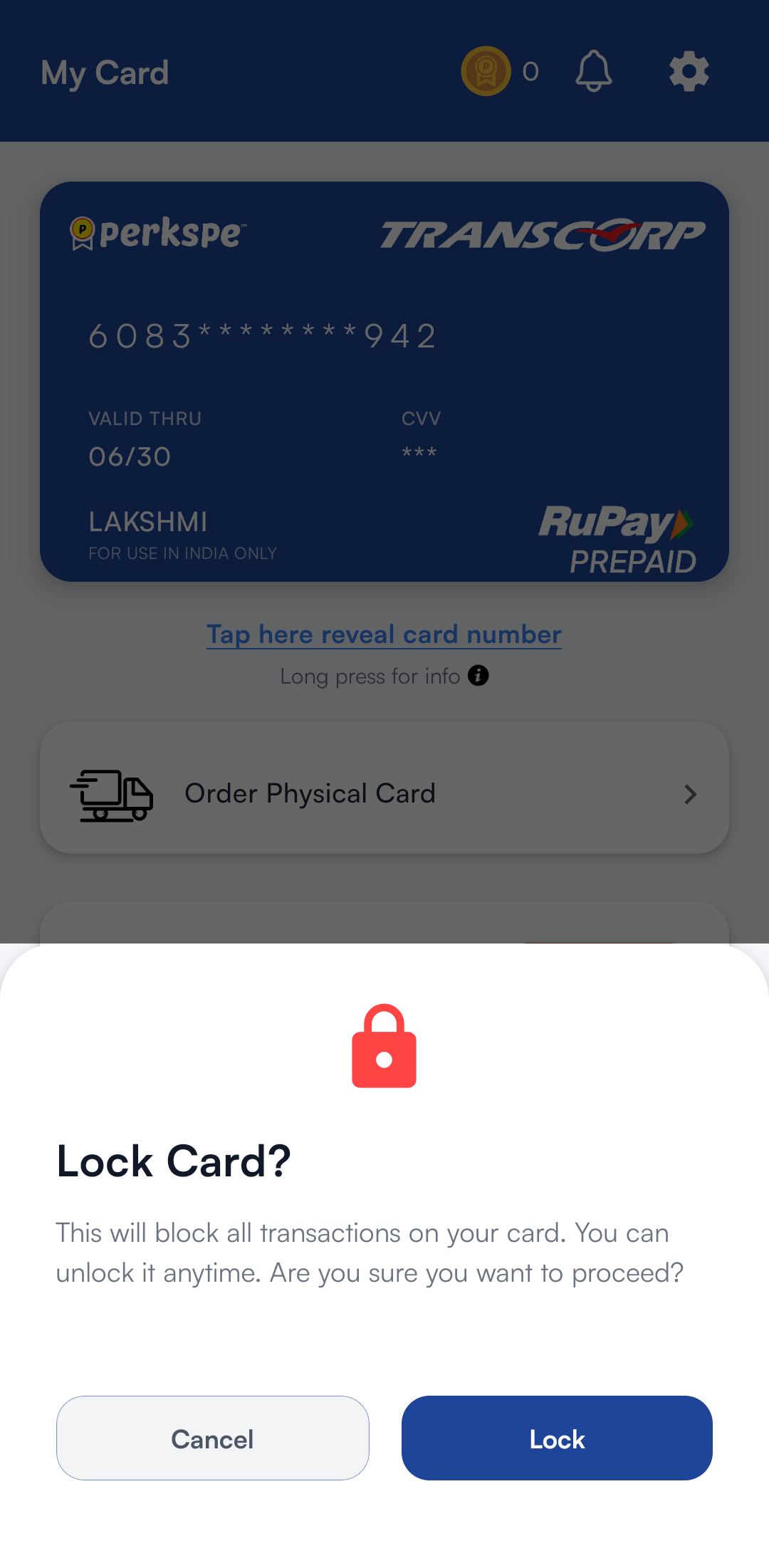
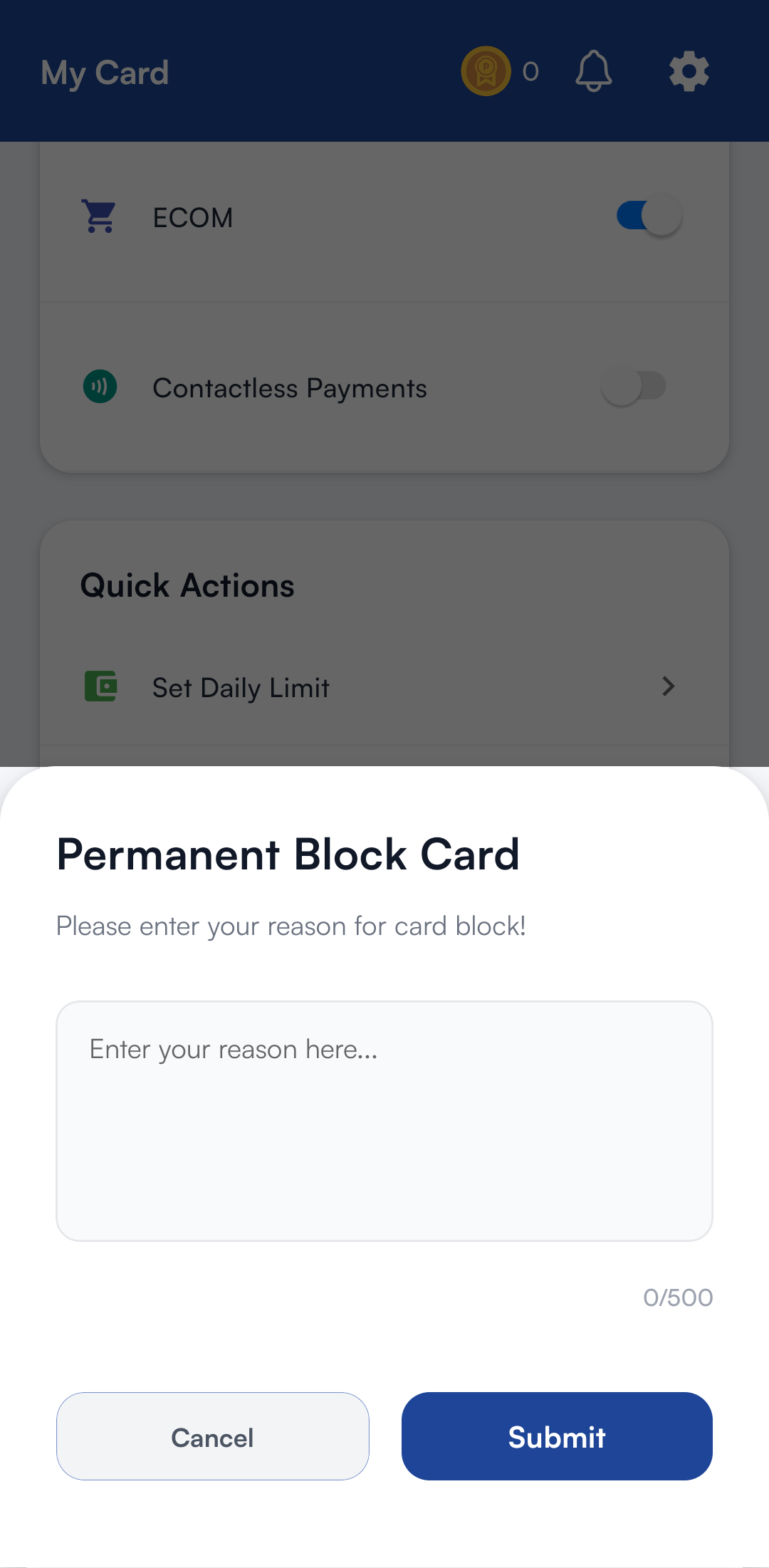
Lock vs. Block: What's the difference?
| Action | Duration | Reversible? | Use Case |
|---|---|---|---|
| Lock Card | Temporary | ✅ Yes | Misplaced card, or when not intending to use it for a while. |
| Block Card | Permanent | ❌ No | Stolen card, compromised details, or card is lost. |
5. Transaction History
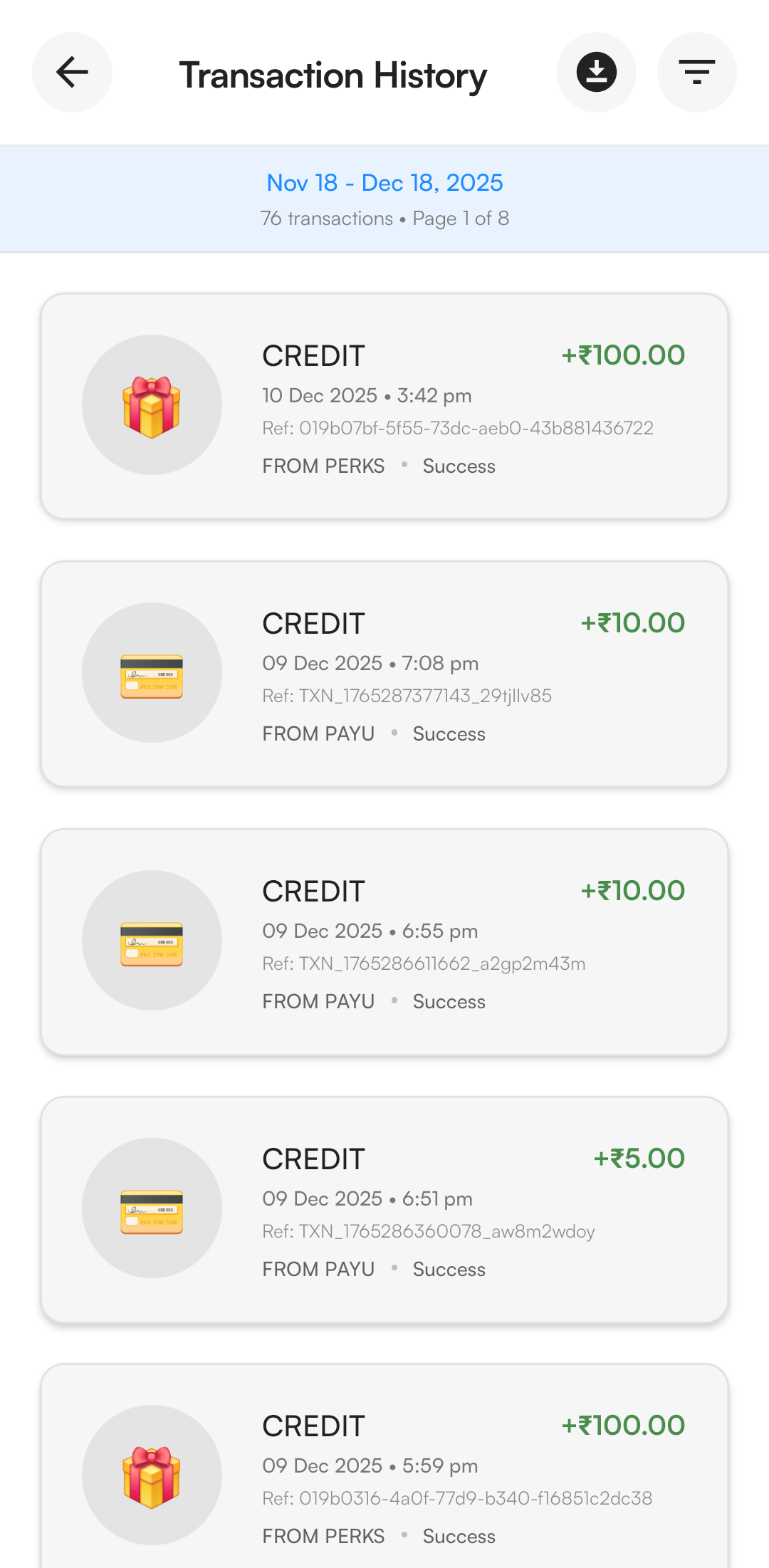
Track every rupee spent with a detailed audit trail of your card activity.
Each record provides:
- Merchant Detail: Name and category of the vendor.
- Timestamp: Exact date and time of the transaction.
- Amount: Total transaction value in local currency.
6. Replacing Your Card
If your card is damaged, lost, or stolen, you can request a replacement directly from the app.
- Go to the Cards section.
- Tap Replace Card.
- Choose the reason for replacement (Lost/Stolen/Damaged).
- Confirm the request.
Once a replacement is requested, the old card will be blocked automatically and cannot be reactivated.
Quick Summary
| Task | App Navigation |
|---|---|
| Change PIN | Cards → Select Card → Change PIN |
| View History | Cards → Transaction History |
| Lock Card | Cards → Toggle "Lock Card" |
| Request New Card | Cards → Replace Card |